Yardi/Elevate Guide
Approving invoices in your workflow:
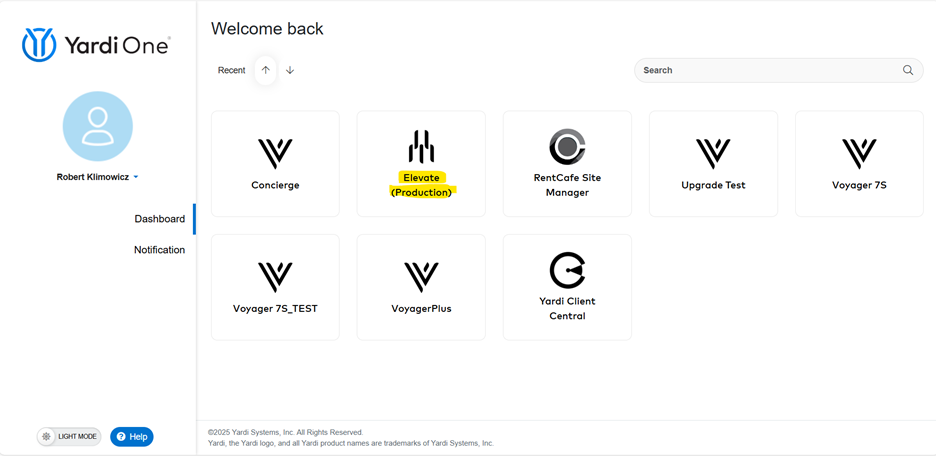
When logging into Yardi, you will want to click on “Elevate (Production)” to gain access to your workflow to find the invoices that are pending your approval.
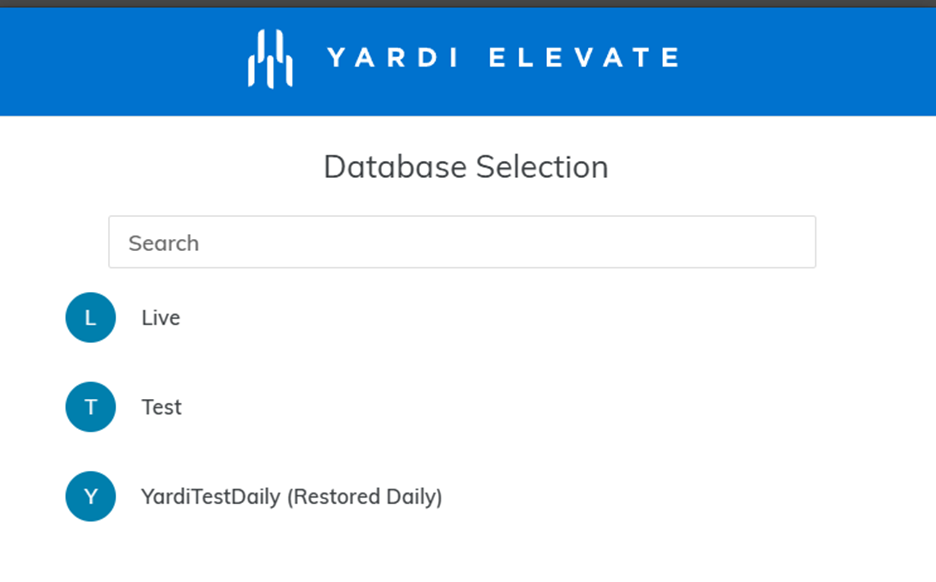
Click on Live once the database selection pops up.
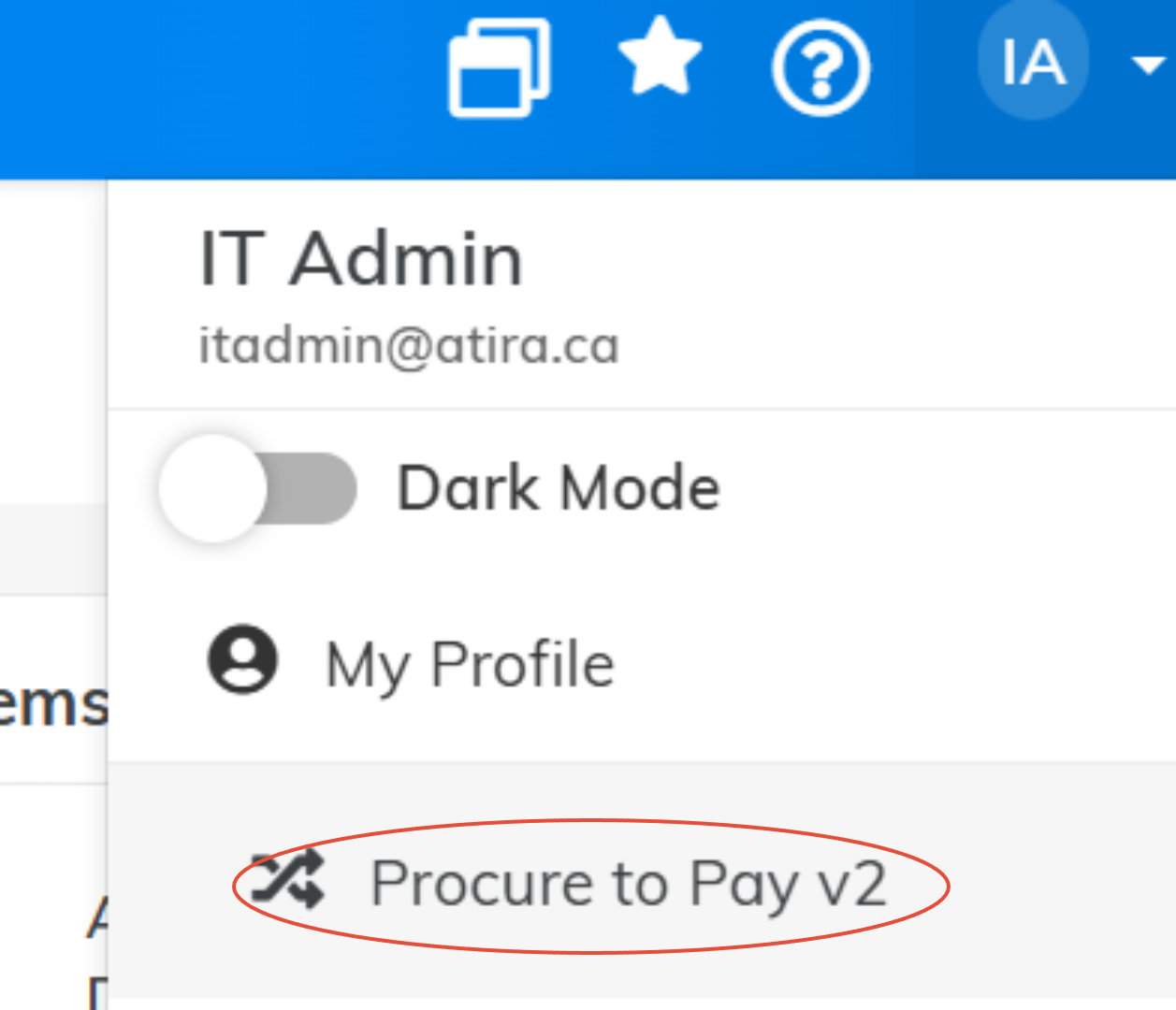
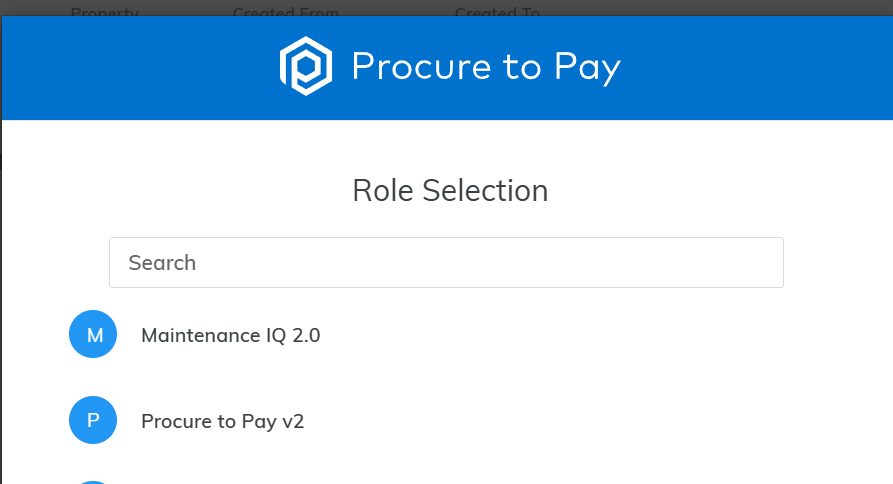
If you're currently in Maintenance IQ you will need to switch roles to Procure to Pay
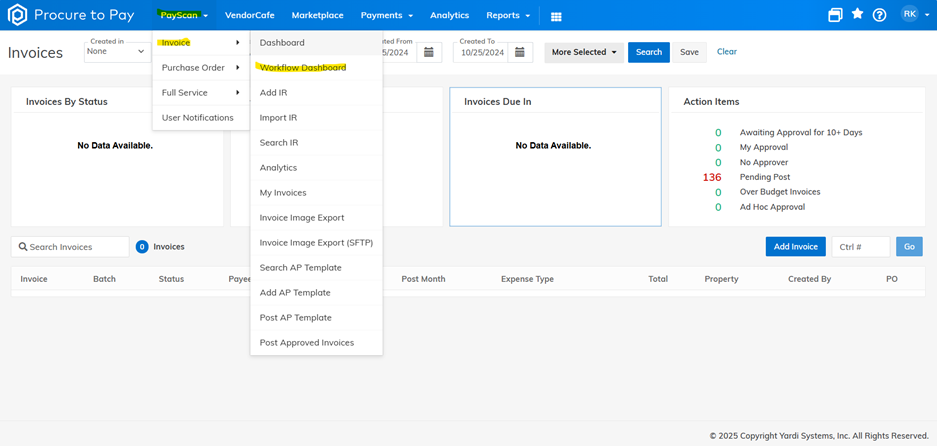
Once you are at the home page of Elevate, you will need to navigate to your workflow. You will click on PayScan in the top left corner and a drop-down menu will appear. Click on Invoice>Workflow Dashboard
This is where you will find your workflow dashboard that contains all the invoices that are pending your review.
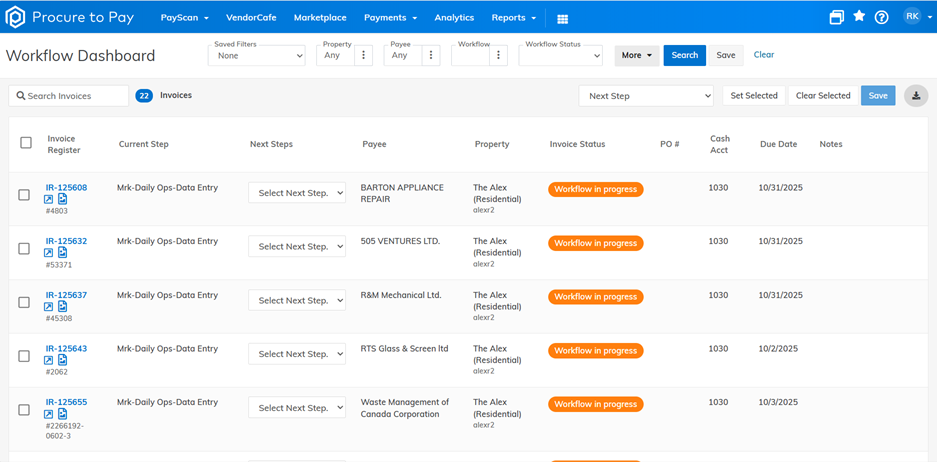
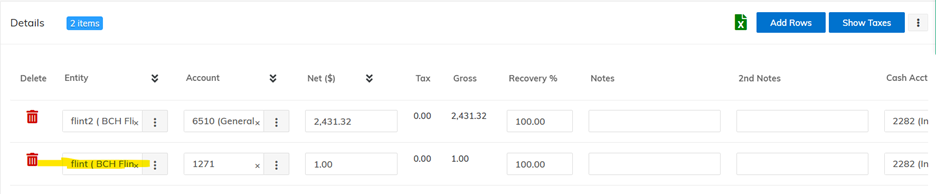
From this page you will be able to filter the invoices that you can see. If you only want to see invoices for one specific building or vendor, you can enter the property code or vendor code in the “property” and “payee” fields. For the property codes, you will notice that some buildings have a “2” at the end of the property code (ex. flint2). The codes with “2” at the end are the active property codes. They are the ones that accounting has been using since April 2025. If you are working on approving an invoice and happen to see a property code without the “2” at the end, the wrong property code was selected at some point. You can change it to the property code that contains the “2” yourself or you can notify accounting, and they will have it changed.
To begin approving invoices, you will want to click on the Invoice Register number to open the invoice.

The invoice worksheet will open, and you will see the below.
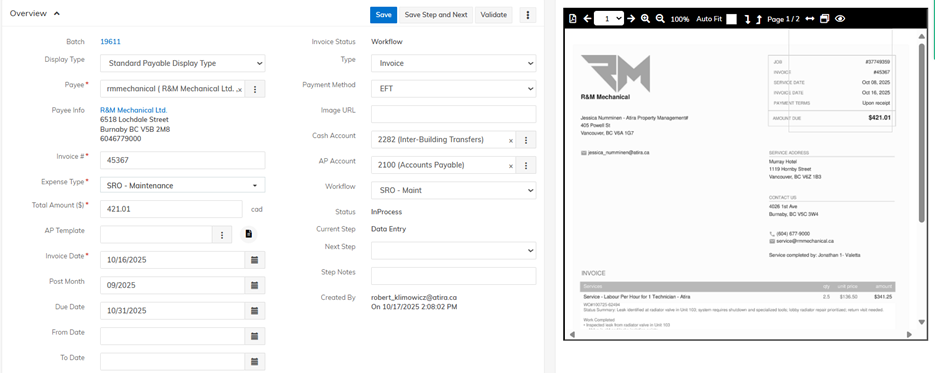
From here you will be able to see a copy of the invoice and the details that accounting has entered. If you scroll down, you will see how accounting as coded the invoice and entered the invoices noted.

You will need to review this to make sure the correct property code “entity” is selected. You will verify the GL account and amounts entered. 50% of the GST amount is captured. The rest of the invoice amount is coded to the appropriate GL according to the services provided on the invoice.
Once you have verified the everything, you will want to submit the invoice to the next step.
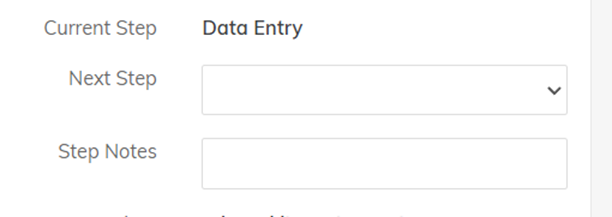
Review Old Invoices:
If you want to review old invoices, you can do so by going to the Search IR page.
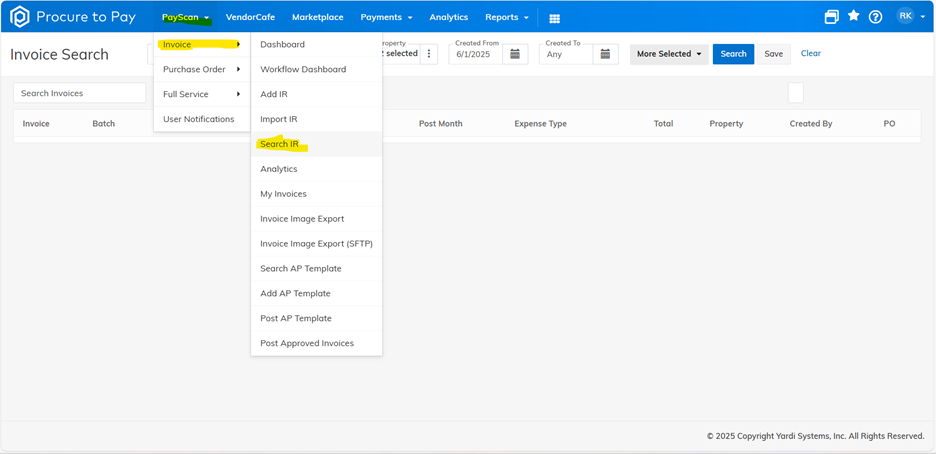
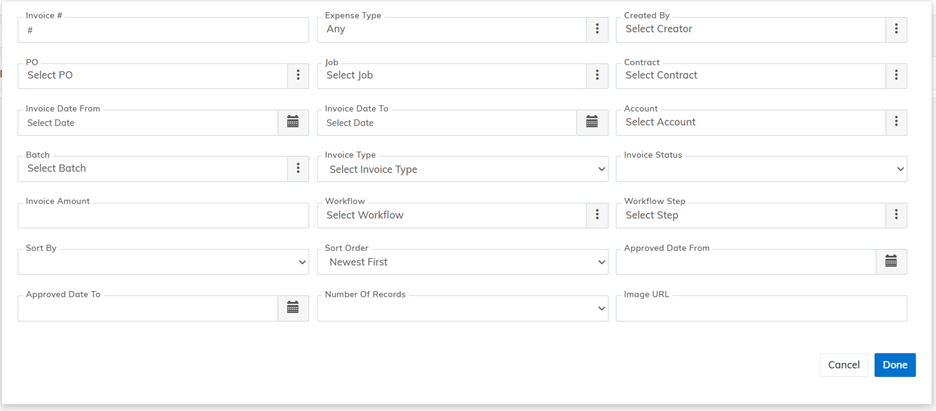
From this page, you can filter by property and vendor.

You can also filter by date amount if you click on the “more selected” drop down list.