
This document provides step-by-step instructions for using the LogBook Power App. It is intended for staff who are required to create, view, and manage log records for daily operational activities.
1. Introduction
The LogBook Power App is used to record important daily activities such as visitor entries, building rounds, incidents, and other operational events. Accurate and timely logging ensures clear communication, accountability, and compliance.
2. Accessing the LogBook App
You can access the LogBook app in three ways:
- Desktop: Install and open the Power Apps application from the Microsoft Store.
- Web: Go to https://make.powerapps.com, select Apps, and open LogBook.
- Mobile/Tablet: Open the Power Apps mobile app and select LogBook from All Apps.
3. Home Screen Overview
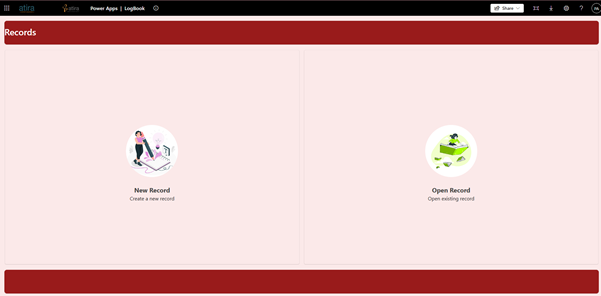
When the app opens, you will see two main options:
- New Record: Create a new log entry.
- Open Record: View and search existing records.
4. Creating a New Record
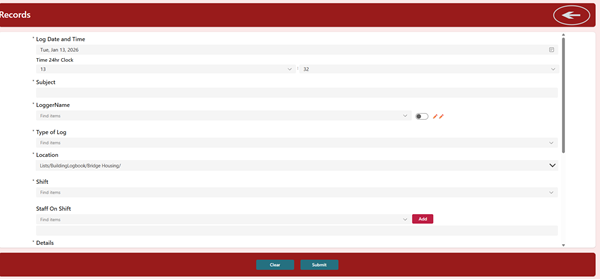
Use the New Record option when you need to log an event or activity. Fields marked with an asterisk (*) are required.
Key fields:
- Log Date and Time: Automatically filled with the current date and time.
- Subject: Short description of the event.
- Logger Name: Select your name from the list or enter it manually if not found.
- Type of Log: Choose the category that best matches the event.
- Location: Pre-filled building or site location.
- Shift: Select Morning, Afternoon, or Graveyard.
- Staff on Shift: Optional – add other staff members present.
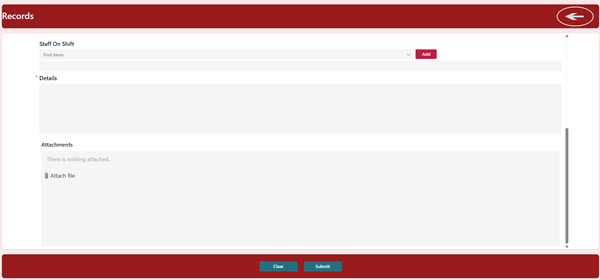
- Details: Required – provide full context of the event.
- Attachments: Optional – upload photos or documents if needed.
Buttons:
- Clear: Clears all entered information.
- Submit: Saves the record. Missing required fields will display an error.
5. Viewing and Navigating Records
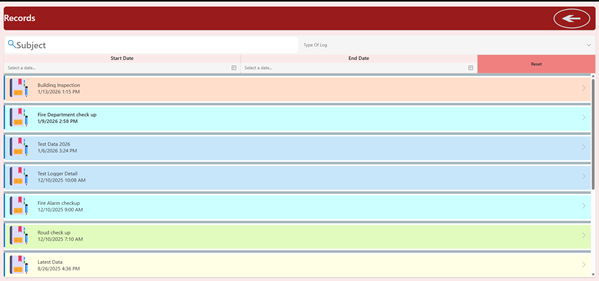
Use Open Record to view previously submitted logs. The most recent records appear at the top.
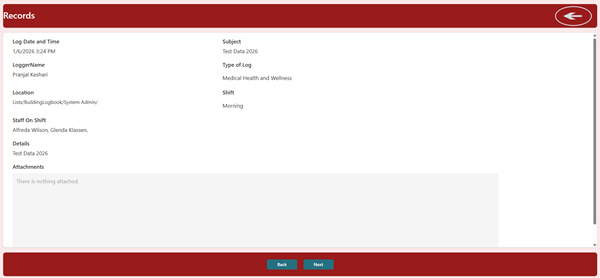
You can:
- Select a record to view full details.
- Use the Back and Next buttons to move between records.
6. Filtering Records
To quickly find records, you can filter by:
- Subject
- Type of Log
- Start Date and End Date
- Reset clears all filters and shows all records again.
7. Mobile and Tablet Use
The LogBook app is fully responsive and works on phones and tablets. The same features are available, allowing logs to be created or viewed even if a desktop computer is not accessible.
8. Best Practices
- Always choose the most accurate Type of Log.
- Write clear and detailed descriptions.
- Attach supporting documents when available.
- Submit logs as soon as possible after the event.