
SharePoint & OneDrive
Quick User Guide: finding files, using templates, and sharing
1. Which one do I use?
OneDrive | SharePoint | |
It is | Your personal storage | Your team’s shared storage |
Who sees it | Only you, unless you share it | Everyone with access to that site |
Use it for | Your drafts and working files | Team folders, forms, policies, templates |
Simple rule: if others need it, keep it in SharePoint. If it is just your own work in progress, keep it in OneDrive.
2. How to open your files
- Go to office.com and sign in with your work email.
- Click the nine dots (top left) and choose SharePoint or OneDrive.
- In SharePoint, click your site, then open Documents.
- Click the folder, then click the file name to open it.
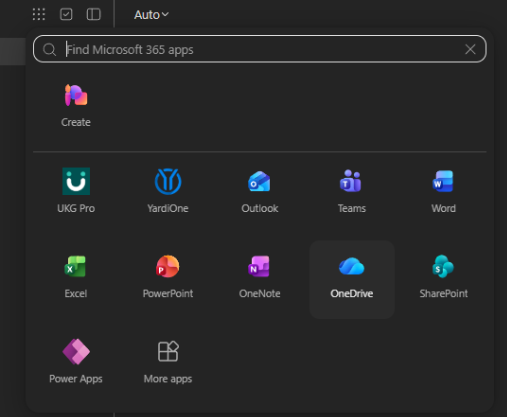
Tip: Click the star next to a site or folder to save it as a favourite so it is easy to find next time.
3. Template files (view only)
Some files are templates. They are locked on purpose so everyone uses the same official version.
- You can open and read a template.
- You cannot edit it, rename it, delete it, or share it.
- If you see “View only” or the Share button is missing, that is normal.
Example: 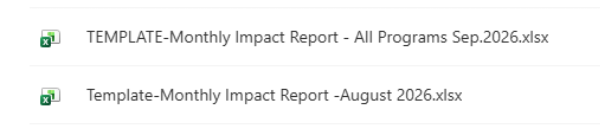
How to use a template
Always make your own copy first.
- Open the template.
- Click File > Save a copy (or Download a copy).
- Choose where to save it, such as your OneDrive or local folder.
- Give it a new name (example: Monthly Impact Report-AWRS Hotel-June2026).
- Fill in and share your copy, never the original.
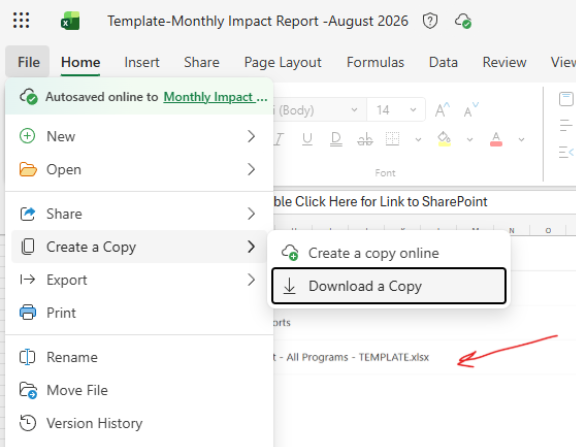
Do not
Save over the template or send the template itself as your finished document.
4. Sharing a file vs. copying the browser link
These look alike but do very different things.
Share (or Copy link inside the Share window) | Copy the link from the browser address bar | |
What it does | Gives the person permission to open the file | Only copies where the file is |
Does the person get access? | Yes, it will allow access to the recipient. | No, it will not give new permission |
If they had no access before | They can now open it | They see “You need permission” |
You choose | Who can open it, and view or edit | Nothing |
Browser Address Link: 
Think of it like this
The address bar link is just the street address of a locked building.
Share is the key. An address without a key does not get anyone inside.
Sharing is like giving the key to another person.
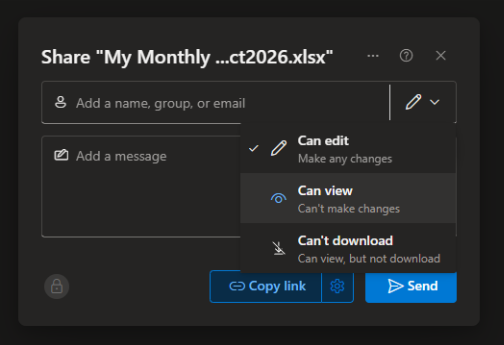
How to share a file correctly
- Select the file and click Share.
- Click the link settings and choose Specific people (best for anything sensitive).
- Choose Can view or Can edit. Pick view unless they need to change it.
- Type their name or email and click Send.
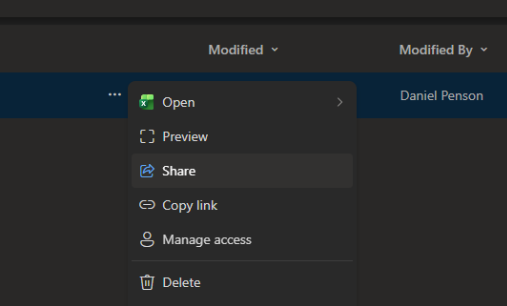
Which one should I use?
Situation | What to do |
A coworker on the same site just needs to find a file | Address bar link is fine |
Someone cannot open the file | Use Share and add their name or email (Best for files you own, not inside SharePoint templates) |
Sending to someone outside the organization | Use Share > Specific people > Can view. |
The file has personal or confidential information | Specific people only |
Pointing someone to a template | Send the address bar link to the folder (they must already have access). |
5. Quick fixes
Problem | What to do |
“You need permission” | Click Request access, or ask the owner to use Share (not the address bar link) |
I cannot edit the file | It may be a template or view only. Save a copy (Section 3) |
The Share button is missing | Sharing is turned off for this file, often because it is a template |
Need help?
Contact the IT department by emailing: techsupport@atira.ca
Please include the description or link and a screenshot of any error message.
For more IT Instructions or guide please visit our knowledge base.
https://atirahelp.freshdesk.com/support/solutions